1
Extract candidate frames
Use the Frame Extractor to sample your local video. Export JPG, PNG, or WebP stills and keep several possible openings and endings.
AI video from first and last frames
Start with a video and use the Frame Extractor to find a clear opening image and closing image. Then create the motion between them with an online start and end frame AI video workflow.
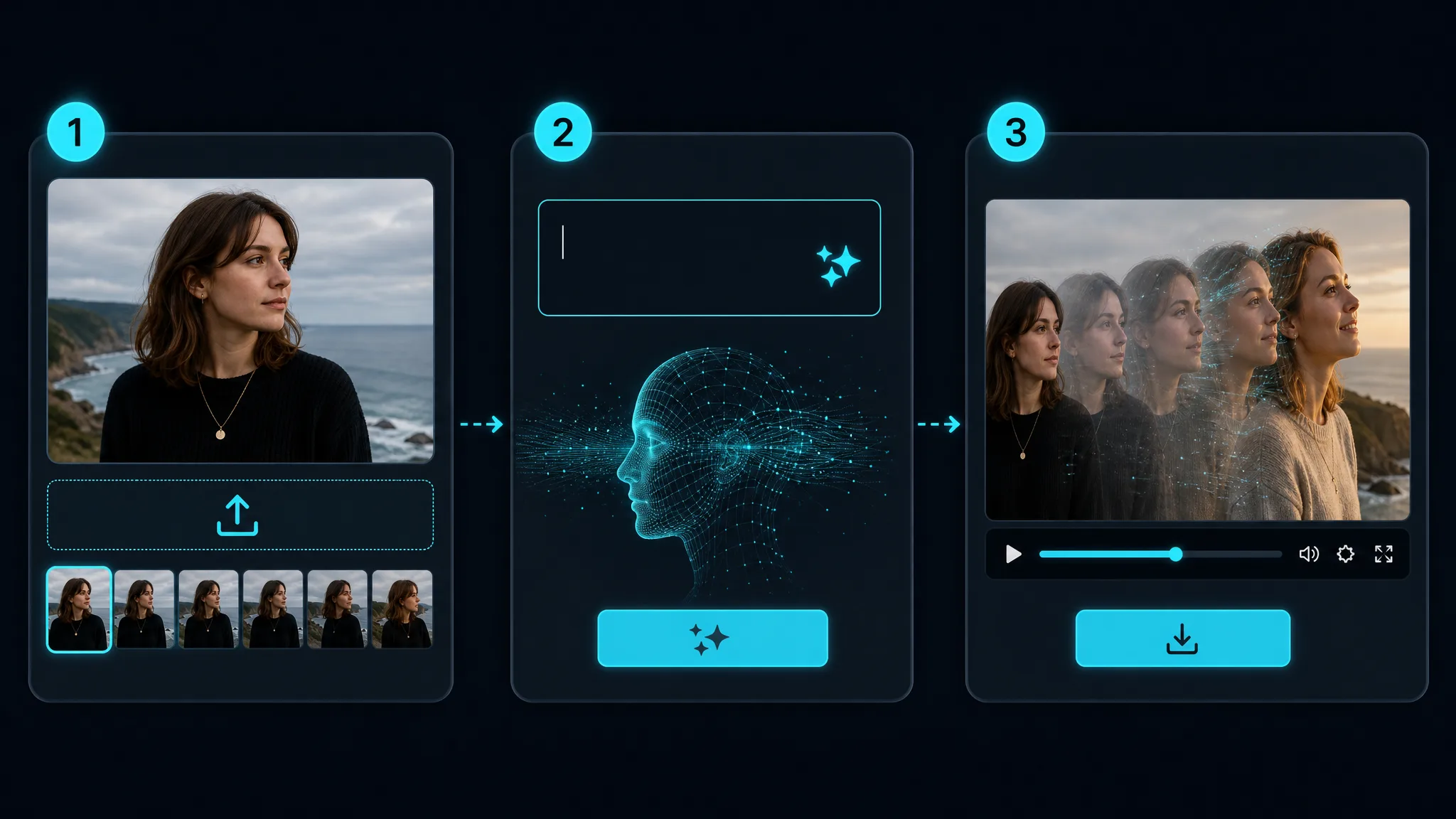
Set a start image and end image
Start and end frame to video uses one still image for the opening and another for the closing state, then generates new motion between them.
This approach gives the AI video generator a clear visual destination. Instead of describing the entire shot from scratch, you choose what the viewer sees first and what the viewer sees last.
Begin with the Frame Extractor to find the right moments in your video. Keep one image for the opening and one for the ending, then use those two endpoints to guide movement, expression changes, lighting shifts, product reveals, or scene transitions.
How frame-to-frame AI video works
Prepare the two visual endpoints before asking an AI video generator to create the movement between them.
Use the Frame Extractor to sample your local video. Export JPG, PNG, or WebP stills and keep several possible openings and endings.
Find the opening moment where the subject, pose, product, or scene is clear enough to guide the beginning of the shot.
Pick a meaningful destination for the motion. A clear change is easier to animate than two nearly identical stills or two unrelated pictures.
Use the Create your start and end frames AI video tool with your two selected images. Start online with Free credits and watermark-free output.
Choose a clear frame pair
The relationship between the first and last frame gives the generator a route to follow.
The same person, product, character, or main object should be easy to identify in both frames. Consistent identity gives the generated motion something stable to follow.
Similar camera angle, framing, and lighting usually make the transition feel intentional. If every visual variable changes at once, the model has to guess more of the route.
Use endpoints that imply an action: neutral to smiling, empty to furnished, sketch to finished render, or plain product to styled hero image. A visible destination makes the motion legible.
There is no need to settle for the first candidate. Extract a few nearby frames, compare them, and send the pair with the strongest story to ImgVid for a free first attempt.
Start and end frame AI video ideas
Use the two endpoints to show a change that would be difficult to capture with a simple slideshow or crossfade.
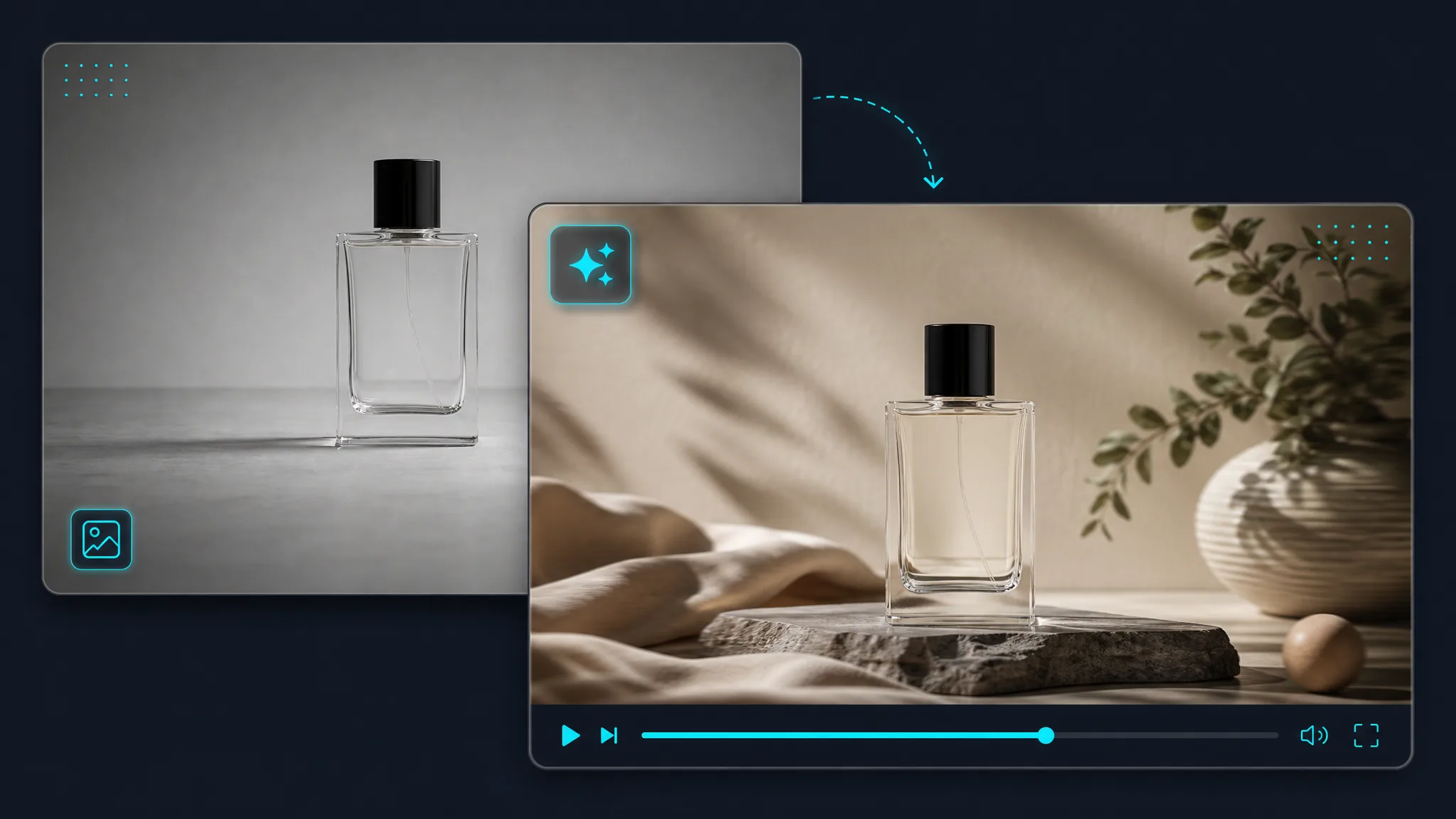
Start with a clean product frame and finish with the styled image you want to show in a listing, ad, or launch clip.
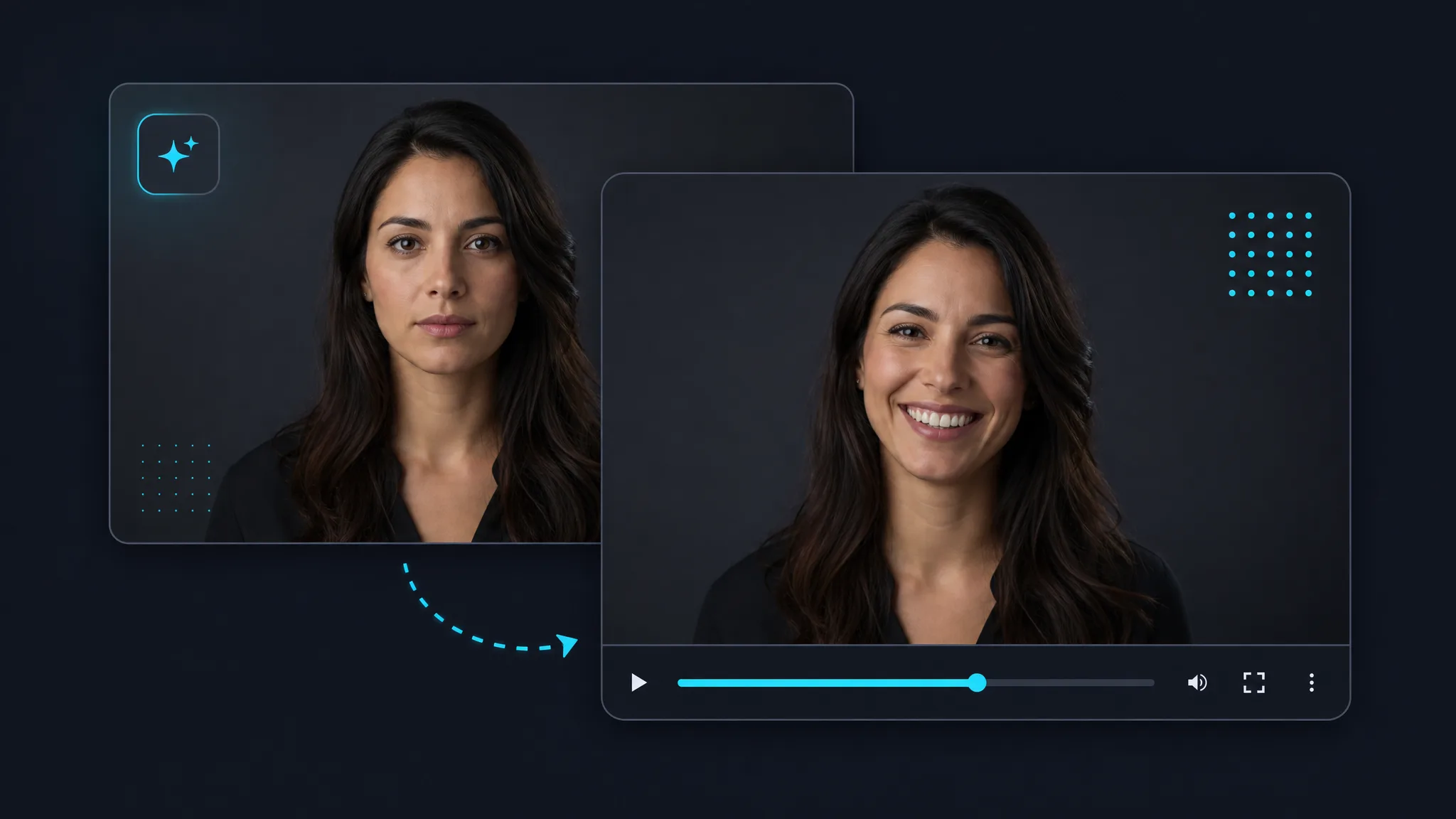
Choose a neutral portrait and a natural smile to create a short transformation for a social post, profile story, or character test.
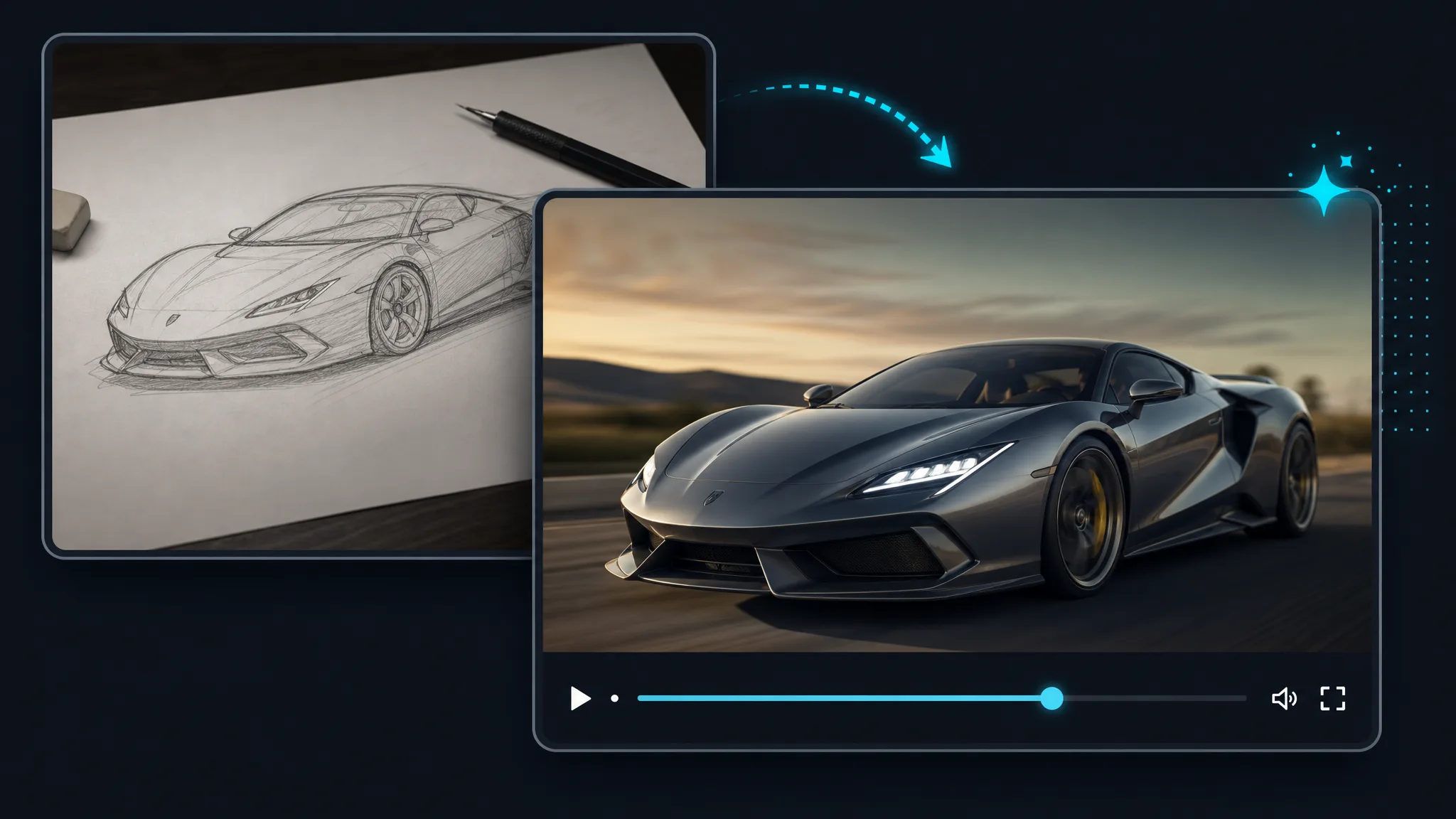
Use the first frame for the idea and the last frame for the finished design. The generated motion makes the reveal easy to understand.
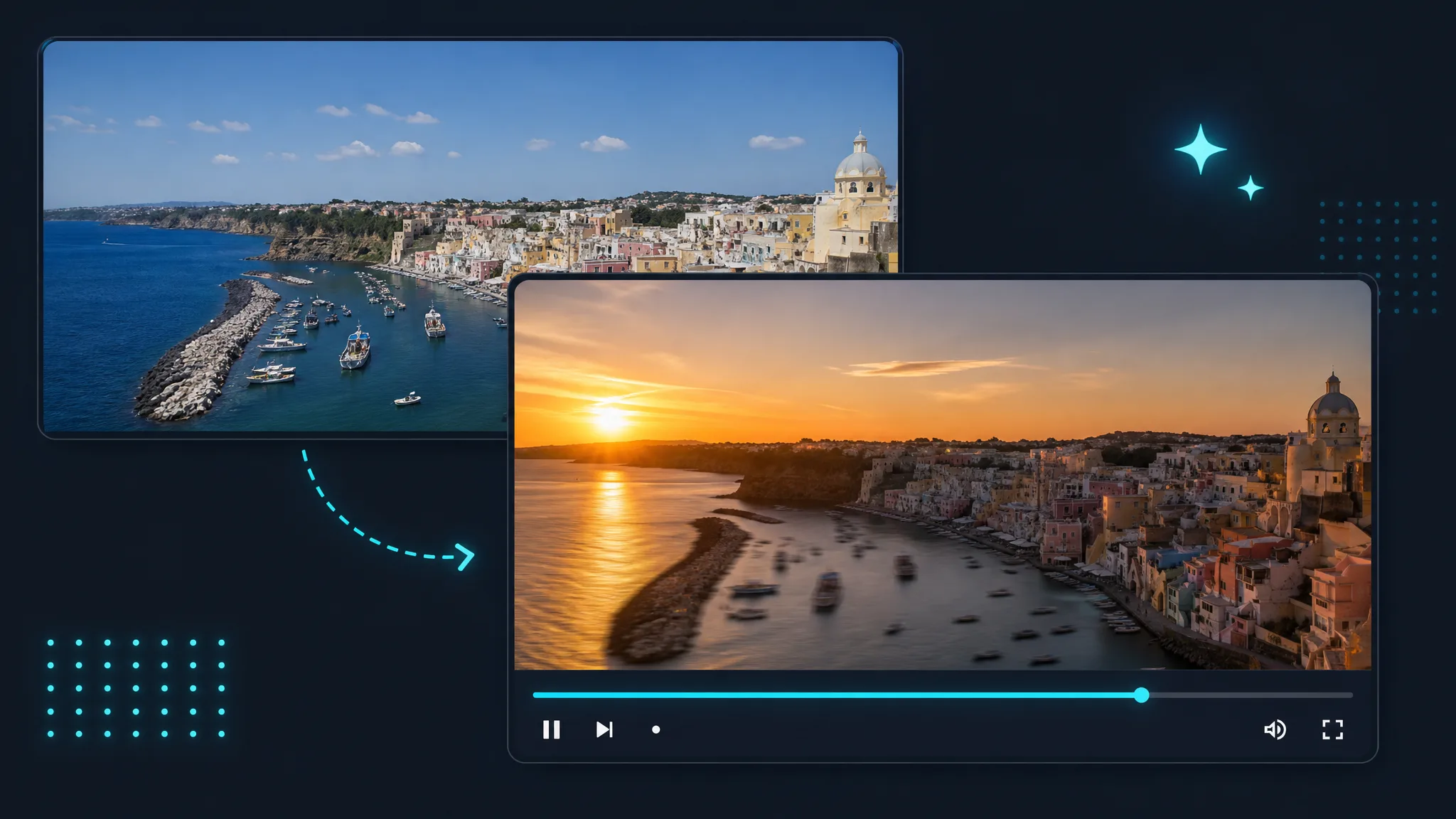
Set the opening location and the destination location, then explore a smooth change for travel edits, intros, and short-form video.
Ready to create the motion?
Have your first and last frames ready? Start with Free credits and create watermark-free motion between them online.
Create your start and end frames AI videoUse two clear endpoints to guide the generated movement.
FAQ
Clear answers before you choose the frames and create the video.
It uses one still image for the opening and another for the closing state, then creates new motion between them.
Use a Frame Extractor to sample the video, compare candidate stills, and choose the clearest opening and closing images.
Yes. You can start online with Free credits, and the generated output is designed to be watermark-free.
No. A crossfade only dissolves two still images, while start-and-end-frame generation creates new in-between motion to connect the two states.
Choose clear frames with a related subject, camera angle, and lighting. A meaningful change gives the model a clearer path to animate.
Use a local video that you are allowed to process, and choose source images that you have permission to use.
Prepare your frames
Feedback & Suggestions
Have any suggestions, feature requests, or issues?
Please feel free to contact us at: